Showing posts with label Technology. Show all posts

Thursday, August 25, 2011

Prepare for Irene

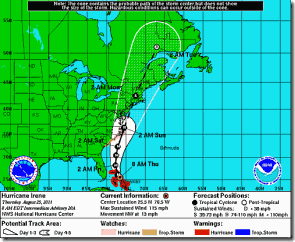
Irene Map

It looks like hurricane Irene is heading in our direction.  It’s current track has the eye passing roughly through the middle of the state as a category 1 hurricane on Sunday.  Of course, these things can change at any time. 

Hurricanes present several issues for IT equipment.  The most common are flooding and wind.  Flooding can be a problem for IT equipment that is on the floor especially in low lying areas.  Make sure any of your IT equipment that fits this scenario is lifted up off the ground or moved completely.  Water and electronic equipment do not play well together!  Remember, that hurricanes can cause water damage in other ways besides flooding.  Water can come in through roofs and windows as well.

Wind damage is the next problem.  In addition to causing physical damage to your building, wind can take trees down and spread debris around.  This in turn can cause power outages, which of course is a problem for your IT equipment.

Because this storm looks like it will hit over the weekend, it would be best to power off as much of your IT equipment as possible.  If you are on our 24x7 monitoring service, please notify us that you will be powering down.  If you can not power your equipment down, make sure it is in as safe an area as possible.  Power surges can cause the most damage to your IT equipment.  Any devices that are left on should, at the very least, be connected to a good UPS (Uninterruptable Power Supply).  Realize that these will only be good for about 15 or 20 minutes.

It would be a good idea to make sure you have a current backup offsite.  For our Clients that use or remote backup service, we will be doing a basic test restore of a sample of your data by the end of the day Friday.

Make sure you have a good communications link with your employees and make sure your insurance information is close at hand.  Mostly importantly, safety first!  Make your preparations before hand.  If you find equipment under water don’t try to move it until the storm has passed, even if the power is out!  The power may come back on at any time and can prove deadly.

Hopefully, this storm will pass without any major issues.  However, it is best to be prudent and prepare as much as possible.  This would be a good time, where possible, to shut your IT equipment off.  Pull out that Disaster Plan and review it before the storm hits.  If you have questions about your specific environment, give a us a call.

This is a pretty good site for information about Hurricane Irene.   

Thursday, August 04, 2011

One way to avoid disasters is to not create them

imageAs IT support people, we are regularly responding to issues created by various types of disasters.  We have pretty much seen everything.  Fires, tornados, floods, roof collapses, loss of key employees have all been thrown at various Clients over the years.  We spend a good amount of time with our Clients planning for these types of disasters.  Disaster plans are developed and tested as much as possible.  Most of the disasters listed here are not under our control.  We can’t control the weather.  But we can plan for these things, so if they do happen to our business we can minimize their effects.

There is a whole set of other types of disasters that are controllable.  Not implementing proper security procedures, not replacing critical old equipment, using the server room as a storage area,  not installing UPSs on critical equipment, and other “controllable disasters” should never happen.  We often hear “we simply can’t have any down time”.  At the same time, the cleaning people use the server room to store their cleaning supplies, or the server room is 100 degrees, and the server in that server room is 10 going on 11 years old.  My question is if you can’t have any down time, why are you asking for it?

In fact, thinking over the last 28 years that we have been supporting Clients, my guess is that about 75% of the “disasters” that have been encountered were self inflicted. These self inflicted disasters cost time and money.  Usually a lot more than the preventative measures that could have been taken to avoid them.  So take a look at your IT environment.  What disasters are you inviting in?

Friday, May 27, 2011

Nothing like a fire to dust of your disaster plan

As everyone is probably aware, I was awakened last Saturday morning at 3am by our alarm monitoring company telling me our fire alarm at the office had gone off. On my way to the office I imagined everything from a false alarm to the smoldering ashes of a total loss. Not a good feeling. I arrived to find 4 fire trucks and a bunch of firefighters running around our office building. The bad feeling got worse. After speaking to one of the firemen, I found out that the office directly behind ours was where the fire occurred. The fire was out but the office was destroyed.

Due to our newly installed alarm system (installed in December) and the great response from the Torrington Fire Department, our office was spared any fire damage although we are still fighting the smoke smell.

Even though we were spared any real damage, this episode caused me to kick in various pieces of our disaster plan. The process highlighted several issues that I thought I would share.

First, it's the little things that will get you. Of course we have various business insurances. But the contact info is (or was) in the office. In this case, once I was able to get into the office I could locate the info. I have now created a Microsoft OneNote notebook and store a synced copy of it in the "Cloud" on a SkyDrive account. This notebook is our complete disaster plan. Everything from contact info to specific procedures is in this notebook. Of course it is a constant work in process, but by having it synced to the "Cloud", I have access to it from any computer that has Internet access. This includes my home computer, my various tablets (don't ask - of course I need 3 tablets) and even my cell phone. The fact that the notebook is synced on several of these devices means I have access to the most recent version of the plan even if I don't have Internet access.

Next, disasters come in many forms. Our office was spared in this case. However, I did not have access until the Fire Marshall said I could go in. If the fire was of suspecious origin, which might have required ongoing investigation, I might not have had access to our office for an extended period of time, a disaster in itself. By having a list of our critical functions I am able to determine which of those functions have to be put in disaster mode. For instance, our service ticketing software is hosted. So, other then letting everyone know that they need to access it from home, I would not have to worry about this critical function.

So our little "disaster" turned out to be just that, little. But, I am more confident about our ability to react to a more serious disaster from the lessons learned. What else is in our Disaster Plan Notebook? You'll have to keep your eyes here on our blog. I will post more information soon.

Friday, April 22, 2011

HIPAA/HiTech Compliance Seminar

SSGI will be presenting a HIPAA/HiTech Compliance Seminar at the Northwest Connecticut Chamber of Commerce on Wednesday, April 27th from 8:30am to 10:00am. The seminar will help healthcare providers understand the changes in the HIPAA rules that the HiTech Act has introduced.

During the seminar SSGI will announce a partnership with eGestalt to provide web based HIPAA compliance assessements. These assessments will help healthcare providers determine their current compliance status and help them become and stay compliant.

For more information conact the Chamber of Commerce office at 860-496-8684 or SSGI at 800-897-7002.

Tuesday, March 15, 2011

Internet Explorer 9 Released

The latest version of Internet Explorer was released on 3/14/11.  Version 9 is more secure, faster and sports an updated user interface.  On the technical side, it supports HTML5 very well.  The new user interface is much slimmer than previous versions allowing for more viewing area.  It takes advantage of hardware acceleration which allows for a very fast browsing experience.  Expect some pretty neat stuff when web developers start taking advantage of IE9’s display capabilities.  The address and search bar are now combined in the One Box.  It takes a little getting used to, but quickly feels like the right way to work. 

IE9 is tightly integrated with Windows 7.  It also runs in Windows Vista but not Windows XP.  Websites can be pinned to the taskbar and/or start menu in Windows 7.  IE9 also allows users to protect themselves from marketing tracking that occurs on many if not most websites.  You can manually block tracking on specific websites or utilize predefined lists that are provided by several Microsoft partners. 

IE9 is much more standards compliant than previous versions of IE.  While not perfect, it really does work much better on more sites than in the past.  It’s adherence to HTML5 specs will insure that this is true moving forward as well.

I have been using IE9 for about 8 months.  Other than the typical “beta issues” that comes with running beta software, it has been pretty good.  By the time the Release Candidate was available, IE9 was pretty solid.   Now that the final product has been released, it’s certainly worthy of replacing your existing browser.  As with all new software, we do suggest taking some time to test IE9 in your specific environment to insure that your critical websites work properly before you roll it out to your devices.  It’s a solid product.  It will make browsing the internet safer, faster and much more enjoyable.

Monday, November 15, 2010

EPHI Information Breach Concerns

As most of our health care Clients are probably already aware, a VNA here in Connecticut was in the news recently and it wasn’t good news.  A nurse’s laptop was stolen from her car.  The laptop contained information on around 12,000 patients. 

Almost immediately, we started getting inquiries from some of our health care Clients asking about the security of their laptops.  I decided to write this blog post to respond to these inquiries in a fashion that will hopefully help all our health care Clients.

First, laptops should be encrypted.  Encryption insures that if a laptop is stolen or lost the information on the hard drive cannot be accessed by taking the drive out of the laptop and trying to access it in another device.  Having a laptop encrypted means that if a laptop is stolen or lost you would not have to report it as required by HiTech/HIPAA.

Covered entities and business associates must only provide the required notification if the breach involved unsecured protected health information.  Unsecured protected health information is protected health information that has not been rendered unusable, unreadable, or indecipherable to unauthorized individuals through the use of a technology or methodology specified by the Secretary in guidance. 

We use TrueCrypt, a free open source encryption tool to encrypt devices.  There are some things to know about encrypting laptops.  First, it is time consuming.  Encrypting a brand new laptop can take 2 or more hours depending on the size of the hard drive and the speed of the laptop.  It can take 4 or more hours on an older laptop.  It can also affect the performance of the laptop, especially older laptops that are already running slow.  Once the laptop is encrypted, the user will need to enter two passwords to start the laptop up.  (there are several variations on how data can be encrypted)  If the encryption key is lost, the data on the laptop is lost (we have processes in place to make sure the key is not lost)

Now come the hard facts.  A large portion of the laptops we work on have the password attached to the laptop somewhere.  Do you know if that is happening in your practice?  If the password is exposed you have no security, even if the laptop is encrypted.  Also, if the device is left logged on when it is being moved from location to location, you don’t have security either.  If the laptop is lost or stolen, one simply needs to open the laptop and all the data is exposed.  Again encryption doesn’t matter.

We have been getting inquiries as to whether an organizations laptops are encrypted or not.  While this is a good question to ask, I’m afraid that you should already know the answer to the question.  Also, this is not the only question to ask.  What are your security policies relative to the laptops and your EPHI in general?  Are your nurses and other staff aware of the policies and are they following them?  What are the consequences if they don’t follow them.  What happens if there is a breach?  Does everyone in your organization know what the protocol is?  If the media is asking questions, do you have a protocol in place?  When was the last time you changed passwords? Do you have an inventory of all your devices?  How often is it checked to see if anything is missing? etc., etc.

Unfortunately, security and ease of use are not synonymous. Security can be painful.  We have to remember complex passwords and follow rules that make our jobs just a little more difficult.  However, it is imperative that security be taken seriously today, in our personal and professional lives.  We do not want to be the next security related news story.

Feel free to contact us if you would like to review your security status.

Tuesday, October 26, 2010

How To Use Signatures in Outlook 2010

Microsoft provides some great resources to help users learn how to use their products.  From simple How-To documents to videos and even live training.  I will publish some of these resources on this blog. 

In this multimedia training module you will learn how to create and use professional (or not) looking signatures in Outlook 2010.  The concepts are similar for earlier versions of Outlook but may be slightly different.

One note I would add to this session.  Outlook, Outlook for Web Access and Outlook mobile do not use the same signature template.  You must create a signature in each of these Outlook modes.  The session does discuss setting up a signature in Outlook for Web Access.  You will need to use your mobile phone email application to create your “mobile” signature.

Be sure to click the next button to get through the whole session.

Use E-Mail Signatures in Outlook 2010

Friday, October 22, 2010

No More Pre-Installed Windows XP on New Laptops/Workstations/Netbooks

Today is the 1 year anniversary of the release of Windows 7.  And it is also the first day that Microsoft is no longer allowing Windows XP to be preinstalled on any workstations/laptops/netbooks. 

For the most part, our Clients have been switching to Windows 7 when buying new workstations and laptops.  We have seen very few issues.  The phase out of Windows XP has been publicized for quite some time now, so it should be a shock to no one.  It’s time to move forward!

Wednesday, October 13, 2010

Largest Windows Update Release Ever

MC900044955On Tuesday, Microsoft released its largest set of security patches ever.  Patches for 16 security related issues were released.  10 of these patches are rated critical, 5 are rated important and 1 is less critical.  We have begun our testing process and will start releasing the updates to our Monitoring Plus Clients on Monday October 18th.  More detailed information on these patches can be found here

Tuesday, July 13, 2010

Microsoft Ends Support of Windows XP SP2

Microsoft is ending support of Windows XP Service Pack 2 today.  This means that Microsoft will no longer provide updates, including security updates for this version of Windows XP.

So what do you do?  First, you can simply upgrade Windows XP to Service Pack 3.  (Make sure you complete a full backup BEFORE installing any updates).  Second, you can upgrade to Windows 7.  Generally speaking however, we do not suggest trying to upgrade to Windows 7 on older computers.

You can find Windows XP SP3 here. Note that it is about 320M. 

How can you tell what Service Pack your Windows XP is running?  Right click on My Computer.  Click on Properties.  You will see your version of Windows XP in the upper portion of the window.

Keeping up with security updates is very important nowadays.  If you are not running Windows XP SP3, you need to get going!

Friday, April 10, 2009

Microsoft Changes Windows XP Deadline...Again

Jun 09 was the latest date that Microsoft pegged for the end of Windows XP sales. Through that date system builders such as ourselves could sell workstations with Windows Vista but then apply downgrade rights and actually install Windows XP. This week Microsoft moved the date out to April 2010.

While I understand that many companies are reluctant to start migrating to Vista for various reasons, I do not think this is the best move for Microsoft. My reasoning may not be what you you expect. By continually extending the end of life of Windows XP, Microsoft is allowing major software vendors to continue to drag their feet in making sure their applications will run properly in Windows Vista and now Windows 7 which is expected to ship later this year.

If the April 09 date was kept, many major software vendors will still not be ready. This is just ridiculous. Windows Vista was released in 2007 and available to software vendors as far back as 2006 in beta versions. And at this point Windows Vista will be replaced with Windows 7 later this year. This affects you. If the June 08 date was kept, you would be in a situation where you would not be able to run these applications on new computers. This is not a good thing. Software vendors need to move faster in migrating to new operating systems. I don't think 4 years fast enough.

At least Windows 7 is fairly close to Windows Vista as far as software development is concerned, so software vendors should be able to migrate to Windows 7 fairly easily as long as they are at least close to rolling out there Windows Vista versions of their applications. Let's hope that is doesn't take another 4 years.

Friday, March 20, 2009

Internet Explorer 8 Released

Microsoft released Internet Explorer 8 on Thursday 3/19/09. IE8 is the latest version of Microsoft's browser. It brings more security and several more features to the Internet browsing experience. A new, smarter address bar allows searches to be done right from the address bar. At the same time, the address bar will present search suggestions that can enhance the Internet Search process.

A new function called Accelerators is included. This features allows you to highlight text in any website and perform web based functions using that information automatically. For instance, you could highlight a street address and instantly go to a mapping site which will present the directions to that address.

Another new feature is Web Slices. Web Slices are a way to stay up to date with a small piece of a website. For instance, if you wanted to keep an eye on the weather in your area, you can install the Web Slice from the weather site and it will install a little button in your IE Toolbar. Any time the weather info changes the little button will light up and you can take a look. You don't have to keep going to the website to check the weather. I think you're going to see a bunch of Web Slices get created.

Tabbed browsing has been available since IE7. IE8 adds a bunch of new features and refines the tabbed browsing experience quite a bit.

I have been using IE8 at home since the early betas. I like it a lot. However, there can be some compatibility issues so you need to be careful. Some websites may not display correctly. Fortunately, IE8 includes a "Compatibility Button" that has corrected any problems I have run in to.

As usual, I suggest our Clients hold of a little on installing IE8. At least install it on one or two machines to test your environment before rolling it out to everyone. At some point it will be offered as a critical update in Windows Updates, so it will get installed automatically if you are not careful. My experience with IE8 has been very good. Because of the new features and the increased security, I suggest Clients move to it as soon as they complete their in house testing. More info on IE8 and the download link can be found here.

Friday, December 19, 2008

Crtical Patch For Internet Explorer

As has been reported in the news, a serious security issue was recently acknowledged in most versions of Internet Explorer. On Wednesday at 1:00pm EST, Microsoft released a critical patch that mitigates the problem. Following our process of installing new patches on various machine configurations for testing, we installed the patch on several machines on Wednesday and Thursday. I also attended a Webinar presented by Microsoft regarding the issue. At this time we have seen no problems with the patch and advise all Clients to install the patch as soon as possible.

For Clients that are on our Remote Monitoring Plus service which includes Windows Updates, we have released the patch and your machines will receive the patch automatically. Note that the patch requires that the device is rebooted in most cases.

Clients that need the patch installed can simply call us to schedule service or download and install the patch themselves. The link to the patch is here. Be sure to select the proper patch for the workstation that it is being installed on. Please do not attempt to install the patch on your servers. We will do this remotely. As a general rule Internet Explorer should not be used on servers, therefore it is less urgent to install the patch on the servers.

Some notes about the patch

1. The patch will require that the device it is installed on gets rebooted. The patch will not take affect until the machine is rebooted. In some cases the patch may not require a reboot. Every machine we have installed it on has required a reboot.

2. Don't forget those laptops and other remote workstations. Those employees working from home need to install this update on the remote devices.

Tuesday, August 05, 2008

Another Problem Email

There is yet another problematic email circulating. This one looks like an email from CNN. It contains THE DAILY TOP 10, a list of links to the top 10 list news article list. It looks very professional with the CNN logos and everything. If the recipient clicks on any of the links, a message appears that says Flash Player - Incorrect version and asks you if you want to download and install the new Flash Player. Again this looks very real. However, what gets downloaded is a piece of malware that proceeds to really cause damage to the computer.

This message looks very real. Users need to ask themselves, "Did I sign up for the CNN Top 10 List?" Also check the from address, it is not from the CNN domain. In short, users need to really be aware of what they are looking at in these types of messages.

We are seeing more and more of these very sophisticated messages. I received 2 of these CNN messages today myself. When they are mixed in with our daily email and newsletters they can very easily slip under our radar and end up costing serious issues with our computers and therefore cost businesses serious money.

Friday, January 18, 2008

Spam and Viruses On the Upswing

We have been seeing a fairly high increase in Client machines that are infected with various types of malware. It's not just us. The industry as a whole is seeing the same thing. It looks like for the moment the bad guys are winning. Current spam and virus detection tools are just not keeping up. This article confirms what we have been seeing.

Of course you still want to make sure that you have current anti-spam and anti-virus programs on all your computers. And make sure that users have a good understanding of how and where malware can come from. And let's hope that the good guys can get ahead of the game sometime soon.

Thursday, December 06, 2007

Our New Phone System

About a week ago we installed our new Microsoft ResponsePoint VOIP (voice over IP) phone system. Actually the phone system is manufactured by Syspine and the software running it is made by Microsoft. ResponsePoint is a phone system that is designed for small businesses. Although the marketing people say it can handle up to 50 phones (technically it can), right now it really fits the 5 to 15 phone scenarios fairly well. I believe that with upcoming software updates it will handle to needs of companies with 15 to 50 phones but not yet.

So what's cool about this system? Several things actually. First, our regular analog phone lines plug right into the system. Currently, it supports up to 8 lines right out of the box. Unlike traditional phone systems, the handsets plug in to a network connection. We just unplugged the network wire going in to our computer, plugged it in to the phone and then plugged another network wire from the phone back to the computer. This network connection allows us to do a bunch of things including connecting to Outlook.

The phone system is fully voice activated. On the inside, if I want to call someone I pick up the phone, push the ResponsePoint button and say "Call Gayle at Mobile". The system then dials Gayle's cell phone. If I say "Call Gayle at Work" it will call her at work. The system works the same on incoming calls. When the automated attendant answers callers can simply say "Ed" or "Ed Davis" and they will be transferred directly to my extension. Say "Operator" and you will be transferred to Ray. You can also ask for "Directory" which will list off all the people you can ask for. Want to know our fax number? Say "What is your fax number?" Of course you can also simply press zero for the operator or type in our extension number (mine is 101), but that's not as cool!

It took me less than an hour to set up the whole system with 7 phones and that includes taking everything out of the boxes! We are still playing around with the various operating options on the system to make sure it works the way we want.

So far we are pleased with the system. There are a few things we miss from our old system but one thing I don't miss is the cost of setting up a new phone when we hire or want to make a change. I can do that myself now and usually in 5 minutes or less!

I'll post more about the system as we become more familiar with it. Actually, we are the local authorized reseller of the system so if you would like to check it out, call the office number and say "Ed"

Wednesday, June 27, 2007

What's New In Windows Vista?

Windows Vista replaces Windows XP as the next desktop operating system. Microsoft has spent several years building what it calls its best operating system yet. While Vista is still Windows, there are many changes, some visible and some under the hood, that will both help and frustrate users. Over the next several posts I will review some of these changes.


When Vista starts up the user interface presents changes immediately. The login dialog looks different but acts the same. You supply your password and you're in. The desktop has some major changes. First, there is no Start button, or at least it doesn't say Start. It's just a round button with a Windows flag in it. When you click on it, the menu make look similar at first but it really is a much better place to "start". I will get into more detail of the Start Menu in another post.


When you start Windows Vista you may also see the Vista Sidebar. The Sidebar is a place where you can put little gadgets (small programs) That can be fun and even useful. The Sidebar can be turned on or off and there are hundreds of gadgets that can be downloaded and run in the Sidebar. At first this may seem a little silly, but I have actually found some gadgets that are very useful.


You will also notice that when you right click on the desktop the menu presented is different than Windows XP. In fact, instead of selecting Properties from the menu, you now select Personalize. This brings up a whole new menu of items. At first I found this frustrating as I couldn't find things that I could easily find before. However, as I continue to work with Vista I am getting used to the new locations for things and for the most part, I like where they are located.


Click here for a short demo of some of the new Vista features. (Click on See it now)

Saturday, June 16, 2007

Office 2007 Versions

Just as there are several versions of Windows Vista, Office 2007 has several versions to choose from, actually 8. Similar to Vista, our Clients really only need to consider a couple of versions. The 8 versions are as follows: (Click on any item for more information)


Basic
Home and Student
Standard
Small Business
Professional
Ultimate
Professional Plus
Enterprise


This document describes what is included in each version. I will present an overview of each of the Office products as this blog series continues. For most of our Clients either Standard or Professional will be the suite of choice.


In addition to these Office versions, there are several Microsoft Office Server products. These server products are intended to help organizations that share Office files: (Click on any item for more information)


Forms Server
Groove Server
Live Communications Server
PerformancePoint Server
Project Portfolio Server
Project Server
SharePoint Server
SharePoint Server For Search


Most of the server based products are for larger organizations although some smaller organizations may find Forms Server, Groove Server, and SharePoint Server useful.


I know this seems like a lot to digest, but it really isn't. You will generally choose one Office suite and for most Clients no Office Server products.


Next, we will start looking into what makes Vista tick. You'll even get a chance to give it a test drive!

Sunday, March 11, 2007

Now that DST has occurred ......

Now that the DST time change has occurred there are a few things you should check and monitor. Here’s a short list.

1. Check the time on your computer. If it’s right, good. If it’s not, double click on the tine and set the time manually. Make a note of the computers that you have to do this to as it indicates the DST patch was not installed. The patch can and should still be installed.

2. If after you set the time on your computer the time reverts back to the wrong time, you probably need to check the time on your servers. If it is wrong, you can manually set it but give us a call as this indicates that the DST patch has not been installed on that server.

3. Check your Outlook appointments. If they are correct, good. If not, you can manually fix the appointments or you can run the Outlook DST tool which we can send you. Keep your eye on your reminders as well.

4. If you use any other scheduling programs (that means you VNAs), check the schedules to insure they are correct. All appointments and schedules should be suspect until verified.

5. Remember that even if you took care of all the DST stuff and your systems are fine, others may not have dealt with the DST changes. If you use meeting invitations to either invite others to meetings or if they send you meeting invites, you need to keep your eye on the meeting times and verify everyone invited to the meeting has the correct time.

6. Check your phone and voice mail systems. Many of them may not have handled the DST changes. If your phone system is not switching to day and night mode properly, the problem is probably that the DST transition did not occur.

7. I have found that if applications were running on your desktop when the time changed, those applications may not operate properly until they are restarted.

8. Continue to monitor your system backup to make sure everything is working correctly. DST changes can affect them.

9. Check your watch and other clocks.

10. Please change the batteries in your smoke detectors!

And of course feel free to contact us if you have any questions.

Thursday, February 22, 2007

More DST Updates

This Daylight Savings Time issue is getting fun! Microsoft has updated a couple of its fixes and moved most of them to the Critical Update section of the Microsoft Update Service. One nice thing is that they have created a website where Windows Mobile 5 cell phone users can browse to to download the DST fix directly to their phone. I've tried it and it worked flawlessly. I have updated our DST document to reflect the most recent changes. It can be found here. Just open the PDF attachment. I will update this document as more information is available.

One new thing since I updated the DST document; Symantec has indicated that Backup Exec uses the Windows date and time functions for backup scheduling. As long as you have the Windows DST updates installed you should be good. However, if your backup is scheduled between 2:00am and 3:00am, you may have problems. When DST comes on in March there will be no 2:00am to 3:00am and when DST ends in November there will be two 2:00 to 3:00am! Fun right?